


Phone Cleaner
3.754.00 Reviews
App Specs
- Version
- 1.0.2
- Updated On
- License
- Free
- Downloads
- 100,000+
- Developer
- Omareyah Team
- Categories
- Tools
- Platform
- Android
Screenshots

 Analysis by AppCompare
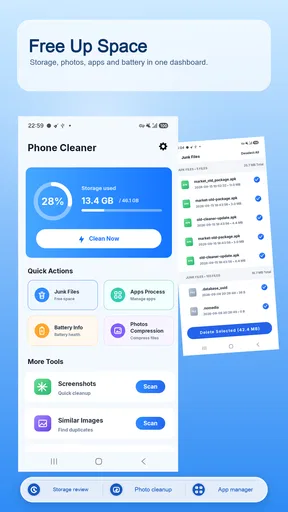
I installed Phone Cleaner to see whether it could make routine phone maintenance less annoying, rather than treating it as a one-tap miracle. The app comes from Omareyah Team and sits in the Tools category, with a straightforward purpose: help me look for unwanted files, reduce photo storage, review installed apps, and inspect battery information from one place. That combination makes sense for anyone whose phone feels crowded but who does not want to jump between several system menus.
My first impression was that this is a practical utility rather than a deeply specialized maintenance suite. The short label, “Phone Cleaner,” sets a very direct expectation, while the longer store summary describes a broader group of tasks. I found that distinction useful: the app is most appealing when I treat it as a central checkpoint for storage and device housekeeping, not as a replacement for every built-in Android setting.
From a crowded phone to a more manageable routine
The starting condition for a useful test was easy to recreate. A phone can accumulate screenshots, duplicate-looking photos, old downloads, forgotten applications, and temporary clutter without any single item appearing important. The problem is not always that the device is unusable; it is that finding the real source of the mess takes time. This is where the app’s four-part approach is sensible. Instead of opening storage settings, a gallery, an app manager, and a battery screen separately, I can begin with one tool.
I would particularly recommend trying it after a long trip, a family event, or a period of heavy messaging. Those situations often create a mixture of media and files that are difficult to sort later. I would not begin by deleting anything important. My preferred workflow is to scan first, inspect the categories, and only then decide what deserves attention. That small pause matters because a cleaner is useful only when it helps me make better decisions, not when it encourages indiscriminate removal.
The app is free, carries an Everyone content rating, and works on Android 8.0 or later. Those requirements make it accessible for people using older supported phones as well as newer devices. Its current version is 1.0.2, so I approached it as a focused utility with a relatively compact scope rather than a mature platform with a long list of advanced controls.
Beginning with junk instead of guessing
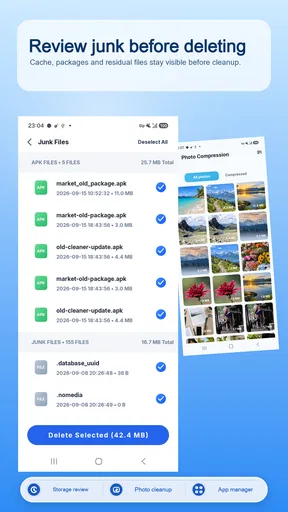
I would start with the junk-cleaning area because it gives the rest of the session a clear direction. The useful question is not simply “How much can I remove?” but “Which items are genuinely disposable?” A good cleaning habit separates temporary clutter from personal files. Cached material, leftover downloads, and repeated media can have very different consequences, so I would read the labels and review the proposed selection before confirming a cleanup.
This is also where expectations need to stay realistic. A phone-cleaning app cannot turn every storage problem into a permanent fix. If the main cause is a large video library, an oversized messaging folder, or applications I actively use, removing miscellaneous junk will not solve the underlying issue. In that situation, the app is still helpful as a signpost: it can point me toward the next handoff, whether that means reviewing photos or uninstalling something I no longer need.
Worth Reading Before You Choose

EA SPORTS FC Mobile 26 Is a Bigger Football Game, but It Takes Time

Flipboard Shows What News Apps Must Do Beyond the Feed

Switching to Android Auto Means Rethinking Your Driving Routine

Google Calendar Makes a Crowded Week Easier to Manage

Ludo King Makes the Most of the Minutes Between Plans

Baby Panda World Brings Quick Play to Modern Phones, but Its Game Library Feels Busy
One practical tip is to use the junk scan as an inventory step even when I do not immediately clean. I can note which category appears repeatedly, then return after checking the relevant source manually. This is safer than treating the biggest visible number as an automatic target. It also makes the process less frustrating when the phone fills up again, because I learn whether the recurring issue is temporary clutter or a growing collection of personal files.
Moving to photo compression with care
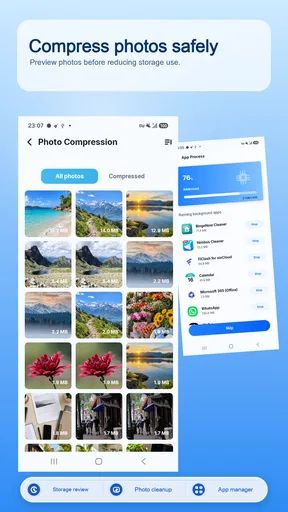
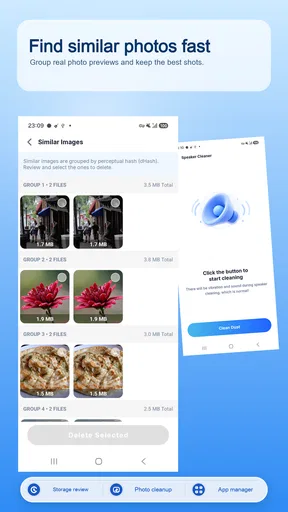
Photo compression is the most delicate part of the workflow because storage savings can come with a visual trade-off. I would use it for images that I mainly view on the phone or share through messaging, but I would be cautious with originals needed for printing, editing, work, or long-term preservation. Before processing a large batch, I would choose a small group of less important pictures and compare the result on the screen where I normally view them.
This handoff from cleaning to compression is important. Junk removal deals with files I may not need, while compression changes files I probably do want to keep. Those are not equivalent actions, even if both are presented as ways to free space. My own rule would be to preserve original photos from meaningful events and use compression selectively on casual captures, screenshots, or images already backed up elsewhere.
Another useful workflow is to organize before compressing. If my gallery is already chaotic, reducing file size does not make it easier to find anything. I would first identify the groups that consume attention, then process only the ones with a clear purpose. That approach reduces the chance of compressing a photo merely because it appeared in a broad selection screen.
Checking installed apps before removing them
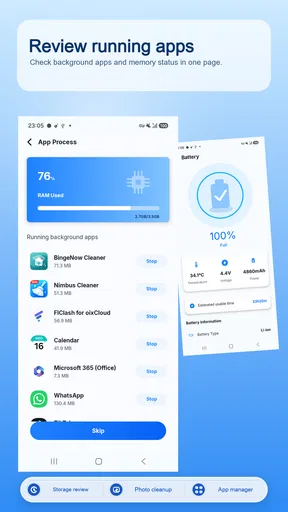
The app-management portion is valuable for a different reason: forgotten applications are often a hidden source of storage and clutter. I would use this screen as a review queue, not as a prompt to uninstall aggressively. A game I have not opened recently may still contain saved progress, offline content, or settings I want to keep. A utility I rarely use may be worth retaining if it supports an occasional but important task.
My preferred sequence is to identify obvious candidates, open each application once outside the cleaner, and confirm that nothing essential depends on it. Only then would I remove it through the normal Android process if appropriate. This handoff keeps the cleaner in its proper role: it helps me notice neglected apps, while the operating system remains the safer place to complete a consequential uninstall.
This makes the feature especially useful for people who install many short-term apps. Travelers, students, and anyone testing services can accumulate a surprising number of leftovers. It is less useful for a carefully maintained phone where every installed app has a known purpose. In that case, the app-management screen may simply confirm that there is little to do.
Using battery information as a diagnostic checkpoint
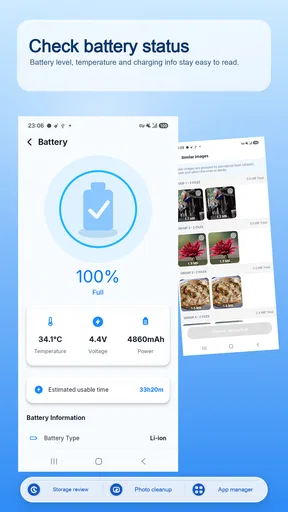
The battery section adds context to the storage workflow. When a phone feels slow or inconvenient, people often blame storage even when the real annoyance is poor battery endurance. Looking at battery information before and after cleaning helps me avoid mixing those problems together. If the battery remains disappointing after storage housekeeping, I know that deleting files was not the complete answer.
I would treat this area as an observation tool rather than a promise of improved battery life. Information can help me decide what to investigate next, but it does not automatically repair an aging battery or change the behavior of a demanding application. For a serious battery problem, Android’s own battery settings and the phone manufacturer’s support tools may offer more direct controls.
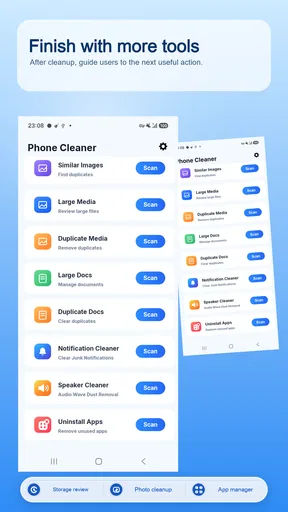
The most useful connection between the sections is the order. I would inspect junk, review photos, examine installed apps, and then check battery information as a final status point. That order moves from potentially disposable content to more personal material and finishes with device condition. It reduces the temptation to make several unrelated changes at once.
What happens when the app hands work back to Android
A cleaner cannot own the entire maintenance process. At several points, the work has to return to the phone’s file system, gallery, app settings, or battery controls. I see that as a normal boundary rather than an automatic flaw. The convenience comes from gathering useful starting points, while the final decision often belongs in a system screen where I can see the broader context.
For example, a photo may look suitable for compression in a list but turn out to be an important original when I open it. An application may appear unused but support another workflow. A battery reading may suggest investigation without identifying the exact cause. The handoff is therefore part of responsible use. I would never grant a cleaner more trust than I give the files it is asking me to change.
This is also why I would keep a backup habit separate from the app. If a picture matters, I want another copy before experimenting with compression or deletion. The app can help me find candidates, but it should not become the only safeguard for irreplaceable content.
A realistic weekend cleanup scenario
Imagine I return from a weekend away with a phone full of camera shots, screenshots of tickets, downloaded maps, and several temporary apps. I would open Phone Cleaner and begin with a scan, looking for disposable material without touching the travel photos. Next, I would review the photo group and select only casual images that are already stored somewhere else or that I do not need at full quality.
After that, I would inspect the installed-app list. The map application might be worth keeping until I confirm that offline content is no longer needed, while a one-time booking app could be a candidate for removal. Finally, I would check the battery information. If the phone still loses power unusually quickly, I would investigate usage in Android rather than assuming the storage cleanup failed.
The outcome of that workflow is not just extra space. I end up knowing which type of content was causing the pressure, which applications deserve another look, and whether battery behavior is a separate concern. That is a more useful result than a vague promise that the phone is “optimized.”
Where the workflow becomes less convincing
The biggest limitation is that a broad tool must simplify several different jobs. Junk cleaning, photo compression, app management, and battery information each deserve different levels of explanation and caution. A single streamlined experience may be convenient, but it can also make complex decisions feel more uniform than they really are.
I would skip this app if I already rely confidently on Android’s storage controls, a dedicated photo-management workflow, and the manufacturer’s battery tools. Those alternatives may provide more detailed context, especially when I need to investigate a particular folder, application, or power drain. I would also avoid using a general cleaner as my main photo archive manager; compression is not a substitute for organizing and backing up originals.
People who want automatic, aggressive cleanup may also be disappointed if they expect the app to resolve every storage issue in one pass. The safest results require attention from me. That friction is worthwhile when personal files are involved, but it means the app is not completely hands-off.
There is a second limitation in the app’s positioning. With an average rating of 3.8 from roughly 349 ratings and around 49 written reviews, the public response looks mixed rather than universally enthusiastic. I would read that as a reason to test the workflow on a small, low-risk set of files first. The app has enough adoption to be familiar to many users, with more than 100K installs, but popularity alone does not remove the need for careful review.
Who will get the most from it
I think Phone Cleaner is best for someone who wants a single starting point for routine maintenance. It suits users who do not know which Android menu handles a particular problem, people who have accumulated forgotten apps, and anyone who wants to review photos and storage without building a complicated system. Its free access also makes it easy to try without committing money to a specialized cleaner.
It is less suitable for power users who need granular file paths, detailed battery diagnostics, or advanced archival controls. Those users may prefer native Android tools or dedicated applications for each task. The same is true for anyone who is uncomfortable reviewing files manually; a central dashboard can make the process simpler, but it cannot make personal data decisions on my behalf.
My strongest recommendation is to use it as a monthly inspection rather than a panic button. A short, deliberate review prevents the phone from becoming overwhelming and makes it easier to notice patterns. I would scan first, act on one category at a time, and stop whenever the proposed action becomes unclear.
My final take on the everyday value
After looking at the complete input-to-outcome flow, I see Phone Cleaner as a useful organizer for phone maintenance, not a magic performance switch. Its strength is the handoff between four practical checkpoints: disposable clutter, photo size, installed applications, and battery awareness. That combination gives me a clear route through a messy phone, especially when I do not know where to begin.
The trade-off is that the app works best when I stay involved. I need to distinguish junk from valuable files, protect original photos, verify app removals, and treat battery information as guidance. If I accept that responsibility, the workflow is sensible and approachable. If I want deep diagnostics or completely automatic decisions, a different, more specialized option will probably suit me better.
Overall, I would recommend it to a friend with a crowded Android phone who wants a free first pass and is willing to review changes before confirming them. The most valuable result is not a dramatic claim about speed; it is a clearer understanding of what is taking up attention and space. Used carefully, that makes this Tools app a practical companion for regular housekeeping, while its limits remain easy to recognize.
Pros
- Quickly identifies large files
- duplicates
- and unused apps.
- Simple interface makes storage cleanup easy for beginners.
- Helps free space without requiring root access.
- Useful tools for managing photos
- videos
- and downloaded files.
- Provides a convenient overview of available and occupied storage.
Cons
- Some cleaning suggestions may require manual review before deletion.
- Advanced features may be limited behind a premium subscription.
- Results can vary depending on device storage and Android version.
- Frequent scans may use battery and system resources.
- Privacy details should be checked before granting file access permissions.
FAQs for Phone Cleaner
What is Phone Cleaner and what does it do?
Phone Cleaner is a utility app designed to help you remove unnecessary files and organize storage on an Android or iOS device. After scanning the phone, it may identify cached data, temporary files, duplicate photos, large videos, unused downloads, and other items that occupy space. Before deleting anything, review the results carefully because the exact cleaning categories and available tools can vary by device and operating system.
Is Phone Cleaner safe to use on my device?
Phone Cleaner can be useful when its recommendations are reviewed before confirmation, but no cleaning application should be treated as completely risk-free. Some files that appear unnecessary may still be important to you, especially duplicate-looking photos, downloaded documents, or application data. We recommend checking the selected items, keeping a backup of valuable files, and avoiding aggressive cleaning options unless you understand exactly what will be removed.
Can Phone Cleaner improve my phone’s performance?
Phone Cleaner may help a device feel less cluttered by freeing storage space and removing temporary files, particularly when the phone is nearly full. However, it cannot repair hardware problems, guarantee longer battery life, or make every application run faster. Performance depends on the device, available storage, background processes, and the operating system. Its main benefit is storage management rather than a guaranteed speed boost.
Does Phone Cleaner delete personal photos, videos, or important files?
Phone Cleaner should not automatically delete personal content without your confirmation, but users should still inspect every cleaning suggestion before proceeding. Photo and video tools may detect duplicates, blurry images, screenshots, or large media files, and automated selection can occasionally include something you want to keep. Review previews, deselect important items, and use backups or a recycle-bin feature when available for additional protection.
Is Phone Cleaner free, and does it require subscriptions or permissions?
The availability of free features, advertisements, premium tools, and subscription plans depends on the specific Phone Cleaner version and platform. Some features may be restricted behind a trial or recurring payment, so check the pricing information before accepting an offer. The app may also request access to storage, photos, notifications, or other device functions. Grant only permissions that are necessary for the features you intend to use.


